Run a deployment on a robot and open the dashboard
openral deploy run is the real-hardware sibling of openral sim run. It boots
the full production ROS graph (HAL lifecycle node, C++ safety kernel, reasoner,
world state, plus SLAM/Nav2 when the robot declares a lidar) and ticks an rSkill
against your real robot, driven by a DeployScene YAML. This tutorial
writes a deploy scene, dry-runs it against a digital twin, then runs it on
hardware with the live dashboard.
Prerequisites
just bootstrap && just sync   # always `just sync`, never bare `uv sync` —
                              # see docs/contributing/toolchain.md
openral install ros           # the ROS 2 graph deploy run launches
uv run openral doctor         # confirm ROS 2, GPU, USB and the reasoner
You need a RobotDescription under
robots/<robot_id>/robot.yaml
and an installed rSkill (Write an rSkill).
In-tree manifests:
| Class | robot_id |
|---|---|
| Single arm | so100_follower, so101_follower, franka_panda, ur5e, ur10e, rizon4, sawyer, widowx, galaxea_a1 |
| Bimanual | aloha_bimanual, aloha_agilex, openarm, anvil_openarm_v2 |
| Mobile manipulator | panda_mobile, panda_mobile_vslam, google_robot, r1pro |
| Humanoid | g1, h1, gr1 |
Class is each manifest's embodiment_kind. pusht_2d is omitted: it is a
sim-only scene-pseudo-robot with no hardware path.
Being in that table is not a hardware path. deploy run resolves hal.real
from the manifest, and only nine declare one: so100_follower,
so101_follower, franka_panda, ur5e, ur10e, sawyer, galaxea_a1,
aloha_bimanual and openarm. The rest carry hal.real: null (or no hal:
block at all) and build_hal raises ROSCapabilityMismatch under
hal_mode:=real. Note the two OpenArms: openarm (Enactic) has
OpenArmRealHAL; anvil_openarm_v2 (Anvil) is sim-only.
Set a reasoner model — the graph will not plan without one
The S2 reasoner has no hidden default model by design. Set a curated one:
export OPENRAL_REASONER_MODEL=claude-opus-4-8   # or gpt-5.5 / gpt-5.6 / cosmos3-edge
export OPENRAL_REASONER_API_KEY=sk-ant-...      # only where the endpoint needs it
Full model/endpoint matrix, the uncurated escape hatch, and what openral
doctor's Reasoner LLM row checks: reasoner
reference.
cosmos3-edge is the on-device option: no key, no cloud. Budget the whole GPU
for it. The checkpoint is 8.6 GB on disk (a 6.3 GB reasoner tower plus a 934 MB
vision encoder; the VAE is not served) and loads at 4.66 GiB, so an 8 GB card
must be its own: a co-resident job holding even 2 GB makes the boot fail. The
sidecar's defaults are also too small for a real palette: the reasoner's prompt
measures 10K tokens for a 4-skill embodiment and 20K for a 14-skill one, against
a --max-model-len default of 8192. Verified end to end on 8 GB:
python tools/cosmos3_reasoner_sidecar.py --port 8901 \
--kv-cache-dtype fp8 --gpu-memory-utilization 0.97 --max-model-len 12288
That serves the small palette with room for the reply, not the large one.
openral doctor cannot see any of this: the Reasoner LLM row reports ok
because the model resolves; only a live tick exercises the sidecar. Sizing,
platform status and the live-validation record:
docs/reference/cosmos3-edge-reasoner.md.
1. Write a DeployScene config
Deploy configs live in
scenes/deploy/.
A DeployScene pins the workcell: scene id, robot_id, optional sim
composition, safety tightening, and additive allowed collision pairs. Robot
facts such as serial ports, IPs, sensors, poses, rates, and limits live in
robots/<robot_id>/robot.yaml.
Option A — create/update the robot manifest with openral detect
If the robot is plugged in, let detection write or refresh the robot manifest:
# A bare detect resolves a plugged-in Feetech arm to so101_follower by default.
openral detect \
    --output robots/so101_follower/robot.yaml \
    --deployment scenes/deploy/so101_bench.yaml
Detection records robot-owned facts in robot.yaml; it creates a deploy scene
only with --deployment. The wizard always runs (there is no --interactive
flag), including the camera binding wizard: a robot camera's binding lands in
robot.yaml, a workcell camera (its own name) in that deploy scene. A deploy
scene never touches a robot camera. A robot type with more than
one unit or host keeps each host's camera bindings (and per-unit calibration) in
robots/<id>/units/<unit>.yaml instead; the scene's robot_unit or
OPENRAL_ROBOT_UNIT selects it, and a real deploy of such a robot refuses until
one is selected (SO-101 bench: units/bench_laptop.yaml; OpenArm: thor, orin).
Use --include usb,gpu,cameras_v4l2,cameras_realsense to limit probes, and
--report detect.json --no-write for the raw detection report only. The rSkill
is not set in deploy config; the reasoner selects it at runtime from the
installed rskills/ registry.
The SO-101 is electrically identical to the SO-100 over USB (same Feetech controller), so the bus can't tell them apart and SO-101 is the default. For the older SO-100, add
--robot so100(a short slug likeso100or a manifest directory name likeso100_follower).
Option B — write the workcell by hand
Create scenes/deploy/so100_pick_cube.yaml:
scene:
  id: so100_pick_cube
  backend: mujoco
robot_id: so100_follower          # matches robots/so100_follower/robot.yaml
safety:
  workspace_box_min_xyz: [-0.3, -0.3, 0.0]
  workspace_box_max_xyz: [0.3, 0.3, 0.5]
The full schema is openral_core.schemas.DeployScene. safety is optional and
must tighten the robot manifest's SafetyEnvelope.
List what's available:
openral deploy list # walks scenes/deploy/*.yaml
Cameras whose stream only exists as a ROS topic (ros2_image)
opencv_thread opens a /dev/video* node, which covers most USB cameras. It
cannot reach a stream a vendor SDK computes rather than the device emitting
it, most importantly depth from a passive stereo camera.
A StereoLabs ZED is the clear case. Over USB it presents one UVC node carrying
both eyes side by side (1344×376 on a ZED Mini at WVGA) and no depth. The ZED
SDK rectifies and stereo-matches on the host GPU, and zed_wrapper
publishes the result. A host without the SDK sees one wide RGB camera, which is
what openral detect reports.
Bind those streams with the ros2_image backend, and let the scene start the
driver so there is no second terminal to forget. This recipe is verified on the
OpenArm bench (scenes/deploy/openarm_bench.yaml, ZED-M, SDK 5.4.1) and is not
OpenArm-specific: any cell with a ZED-M bolted to the robot, launched under the
wrapper's default zed camera name and zed_node node name, uses it as is.
Another ZED model changes camera_model and needs its own override file (the
ZED-M one pins settings for its USB hub and IMU); a different camera or node
name changes the /zed/zed_node/... topic root on every binding below.
# The scene launches zed_wrapper itself (real path only; `deploy sim` renders).
drivers:
  - package: zed_wrapper
    launch_file: zed_camera.launch.py
    args:
      camera_model: zedm            # zed / zedm / zed2 / zed2i / zedx …
      # The camera is bolted to the robot, so its pose belongs to the robot's
      # TF tree (the manifest's mount), not to the wrapper's visual odometry.
      # With these on, zed_camera_link gets a SECOND parent, tf2 lookups go
      # order-dependent and octomap silently drops every cloud.
      publish_tf: "false"
      publish_map_tf: "false"
      # With IPC on (the wrapper's default) the camera's own frames go on /tf as
      # DYNAMIC transforms, and octomap_server stalls for seconds waiting on them
      # (docs/tutorials/deploy/openarm-real-world-voxel-check.md, step 1).
      enable_ipc: "false"
      # Scene-relative. Pins VGA (the ZED-M shares a USB hub with other
      # cameras and reboots in a loop at HD1080; VGA raw is also what the
      # pick-and-place policy was trained on), advertises the raw image topics,
      # turns positional tracking
      # off and depth stabilization to 0 (the SDK force-enables tracking
      # otherwise, defeating the setting above).
      ros_params_override_path: drivers/zedm_openarm_override.yaml

runtime:
  # A depth SensorSpec with intrinsics auto-enables the octomap leg, but the
  # cloud topic keeps a sim-only launch default unless the scene pins it —
  # leaving the octree empty behind a healthy-looking graph.
  enable_octomap: true
  octomap_cloud_topic: /zed/zed_node/point_cloud/cloud_registered
A driver launched from the scene's drivers: block inherits the deploy's Fast DDS
large-data profile (FASTRTPS_DEFAULT_PROFILES_FILE, named on the
dds_transport_ready: line). One you start yourself in another shell does not, and
its best-effort samples above ~512 KB (clouds, depth and colour frames) are then
mostly lost before any consumer sees them; export the same variable there
(DDS transport for large messages).
The scene has no sensors: block. The ZED is bolted to the robot, so both of
its streams are robot cameras, and a deploy scene never touches a camera the
robot manifest defines (check_scene_sensor_overrides refuses a scene entry
that reuses a manifest sensor's name). The manifest owns each camera's identity and frames
(robots/<robot>/robot.yaml); its real-hardware deploy_binding and calibrated mount go
in the unit overlay, robots/<robot>/units/<unit>.yaml — this is what
robots/openarm/units/thor.yaml commits:
schema_version: "0.1"
robot_id: openarm
unit: thor
sensors:
  # Depth: SDK-computed, so it exists only as a topic. `32FC1` metres on the
  # wire (or `16UC1` millimetres with `openni_depth_mode: true`) — either way
  # it reaches the world state as DEPTH16, uint16 millimetres. Modality,
  # frame_id and parent_frame stay in robot.yaml; the unit adds the
  # calibrated mount and the binding.
  - name: head_zed
    static_transform_xyz_rpy: [0.06597, -0.004548, 0.094539, -0.055916, 1.145014, -0.036625]
    deploy_binding:
      backend: ros2_image
      backend_params:
        # The zed_wrapper topic root is /<camera_name>/<node_name>/, so the
        # node name is part of the path.
        topic: /zed/zed_node/depth/depth_registered
        # best_effort (the default) also matches a RELIABLE publisher; a
        # `reliable` subscriber gets NOTHING from a best-effort one.
        reliability: best_effort
        qos_depth: 5
      max_age_ms: 500

  # RGB: the wrapper's UNRECTIFIED left image, the policy's `top` view — the
  # pick-and-place policy was trained on raw VGA frames, so the override grabs VGA
  # and sets `video.publish_raw: true`. Use `rgb/color/rect/image` (with its
  # zero-distortion CameraInfo) for consumers that assume a pinhole camera.
  # It is published as `bgra8`; the reader drops the constant alpha plane and
  # delivers `bgr8`.
  - name: top
    deploy_binding:
      backend: ros2_image
      backend_params:
        topic: /zed/zed_node/rgb/color/raw/image
        reliability: best_effort
        qos_depth: 5
      max_age_ms: 200
A scene's sensors: block is only for a camera that is part of the cell, not
the robot (an overhead or front camera on a stand). It takes a name the
manifest does not use and carries its own geometry and binding:
sensors:
  - name: overhead               # not a manifest sensor name
    modality: rgb
    frame_id: overhead_optical_frame
    parent_frame: world
    static_transform_xyz_rpy: [0.4, 0.0, 1.2, 3.1416, 0.0, 0.0]
    rate_hz: 30.0
    encoding: rgb8
    deploy_binding:
      backend: opencv_thread
      backend_params: {device: /dev/v4l/by-id/<your-camera>-video-index0, fps: 30}
Every frame in the world state, RGB and depth alike, is decoded by its
encoding (decode_inline_frame): the depth frame rides along in the policy's
observation as a uint16 (H, W, 1) array under its own sensor name; an
RGB-only policy never reads it. Until 2026-09-22 the runner read every
frame as uint8, and a ZED depth frame next to the RGB slots aborted the first
real OpenArm dispatch with cannot reshape array of size 1843200. A camera
that delivers JPEG or PNG (an MJPEG USB camera) is decoded to RGB the same way.
The bus is not the policy's path. Cameras without a GStreamer tee reach
/openral/cameras/<name>/image through a Python republisher capped at 3 Hz and
320x240 (the full-resolution rclpy copy holds the GIL; the policy reads the
native frame in-process from the aggregator). Per camera, backend_params
takes topic_rate_hz: <hz> to lift the rate and topic_native: true to
publish at capture size: opt-ins for a bus reader that needs exact pixels,
such as a calibration pass. To record the frames the policy actually saw, pass
--dataset-out <file.mcap>: the recorder snapshots the aggregator at every
tick (native frames + state + action) and never reads the bus.
A frame the decoder cannot handle is logged as runner.frame_skipped with the
sensor and encoding; if that sensor feeds one of the policy's required camera
slots, the goal fails with ROSPerceptionStale rather than running the policy
without that view.
Prerequisites on the host: the ZED SDK installed, and zed_wrapper running
and publishing. Without them the reader opens fine and then every read_latest
raises ROSPerceptionStale naming the topic. A driver that isn't running and a
QoS mismatch look identical to the subscriber, so the message names both.
The reader converts 32FC1 metre depth into OpenRAL's DEPTH16 layout (uint16
millimetres). Samples that are non-finite (NaN is a stereo matcher's "no
match") or outside [0, 65.535] m become 0, the ROS "no reading" value,
never a wrapped uint16, which would read as a confident near distance for
something far away.
The same backend covers RealSense aligned depth, Orbbec, GMSL/Isaac drivers, or any rectified stream published by a calibration node.
Calibrate before you project. A VLA conditions on pixels, so uncalibrated
fx/fy/cx/cyare inert for it. They stop being inert the moment depth is projected into a point cloud for octomap / nvblox / collision. Runopenral calibrate camerafirst.
Building a world map from a real depth camera (octomap_cloud_topic)
Turning enable_octomap: true on is not enough on real hardware. octomap_server
subscribes to whatever octomap_cloud_topic names. Under deploy sim, left unset,
it is /openral/cameras/<name>/points of the manifest's one depth sensor with
intrinsics (e.g. head_zed on openarm, front_depth on panda_mobile), a
topic published by the sim sensor bridge, which back-projects the digital
twin's depth raster; a manifest with several depth sensors must pin the one to map.
Nothing in-tree publishes a cloud under hal_mode:=real (the sensor leg publishes a
bound depth sensor's image on /openral/cameras/<name>/depth/image).
So deploy run refuses with ROSConfigError before launch when octomap is on and
nothing is pinned. That includes the auto-enable: any depth or point-cloud
(3D lidar) sensor in the manifest or the scene turns octomap on. Without the check
the failure is silent: every node comes up healthy, the octree,
/openral/world_voxels and the dashboard's POINTCLOUD card stay empty, and the
kernel drops every chunk as DROP_VOXEL_UNAVAILABLE. Pin the driver's topic, or
set enable_octomap: false to run without the world map.
Point it at the cloud your depth driver already publishes:
runtime:
  enable_octomap: true
  # zed_wrapper's own registered cloud. RealSense: /camera/depth/color/points.
  octomap_cloud_topic: /zed/zed_node/point_cloud/cloud_registered
  # Optional, per rig: how long the kernel trusts the last voxel grid (default 1.0 s)
  # and how long the octomap bridge republishes the last octree (default = the
  # deadline, never above it). Raise both for a source slower than ~1 Hz, up to the
  # schema's hard cap of 2.0 s on the deadline (above it the scene is refused).
  # world_voxel_deadline_s: 2.0
  # max_octree_age_s: 2.0
  # Optional, per rig: how old the camera data behind a voxel grid may be when the
  # kernel checks a chunk, from capture (default 1.5 s, measured on the Thor ZED-M:
  # p99 ~1.0 s; hard cap 3.0 s). Measure yours; below the rig's latency tail the robot stops.
  # world_voxel_data_age_budget_s: 1.5
  # Optional, per rig (real camera only): how far past the robot's collision model a
  # depth return is removed as the robot before octomap. 0.02 m is measured at rest on
  # the OpenArm cells; derive it from depth noise, extrinsic error, capture-to-joint-state motion and half a voxel.
  # It is also a blind shell around the arm, so do not raise it without that derivation
  # (hard cap 0.10 m).
  # robot_self_filter_padding_m: 0.02
On a deploy sim twin, a pinned topic outside /openral/cameras/ is a real
driver stamping on wall-clock, so the graph runs on host wall time without a
clock_origin pin (pinning simulation with it is refused: octomap would drop
every cloud as from the future).
Two worked examples:
scenes/deploy/openarm_zed_octomap.yaml
sets enable_octomap and octomap_cloud_topic together, and
scenes/deploy/openarm_tabletop.yaml
pins enable_octomap: false to override the auto-enable that the manifest's
head_zed depth SensorSpec would otherwise trigger (deploy run resolves
that auto-enable through the same code path as deploy sim). Both are
deploy sim scenes, but the same fields apply unchanged under
hal_mode:=real. Copy one of them; never leave it half-set.
To let that map stop a real arm, not just draw it, see
scenes/deploy/openarm_real_world_voxels.yaml
and its attended runbook: it adds
enable_octomap_kernel_check: true and a guarded launcher that refuses until the camera
pose is declared for the selected unit in robots/openarm/units/<unit>.yaml. OpenRAL
does not calibrate that pose: the runbook's step 2 states the frames and the accuracy
the check needs, and the operator measures it (typically a hand-eye calibration). The
gate is robot-agnostic: any robot with a cloud source, not just OpenArm.
Its autonomous sibling,
scenes/deploy/openarm_real_autonomous.yaml,
adds the reasoner, the open-vocabulary detector and spatial-memory ingest so a goal is
language (openral prompt "pick up the boxes"), behind the same launcher's --autonomous.
Reusing the driver's cloud is deliberate: zed_wrapper (and the RealSense and
Orbbec drivers) already stereo-match and project on the GPU, so a depth-to-cloud
converter node would redo that work.
Enabling this leg also attaches the WorldCloudBridge, which feeds the
dashboard's world.pointcloud span; the card is gated on
enable_octomap or slam_mono_camera and stays dark until one is on.
Before flipping it on a robot that moves:
octomap_serverneeds the cloud'sframe_idresolvable againstodomthrough TF. A driver publishing in its own optical frame needs that frame connected to the robot's tree, which the sensor'sframe_id/parent_framein the deploy scene does.- With
enable_octomap_kernel_checkleft at its default, these voxels become a safety input: the C++ kernel rasterises the arm's capsules against them and E-stops on overlap, so a noisy or mis-framed cloud surfaces as an E-stop, not a bad picture. Bring the leg up with the arm unpowered and check the card first.
2. Dry-run against a digital twin first
openral deploy sim boots the same graph (dashboard + safety kernel +
reasoner + prompt router + runtime + HAL) against a digital-twin HAL driven by
the same DeployScene YAML, no robot required. It is the safe place to shake
out manifest, sensor, and rSkill-compatibility errors:
openral deploy sim \
  --config scenes/deploy/so100_pick_cube.yaml
deploy sim takes no --rskill: the reasoner picks the active rSkill from the
in-tree rskills/ palette at on_configure, embodiment-filtered.
Two cheaper checks before that
deploy sim --dry-run resolves the scene, the HAL params and the launch argv
and prints them without shelling out to ros2 launch:
openral deploy sim --config scenes/deploy/so100_pick_cube.yaml --dry-run
openral deploy validate is the readiness check for real hardware, with no
ROS launch and no robot required. It catches the gaps that otherwise fail late,
at HAL configure or on the first sensor read:
openral deploy validate --config scenes/deploy/so100_pick_cube.yaml
It checks:
- HAL transport — a serial
portis declared, and that device exists now. - Calibration — a serial HAL with
calibrate_on_connect: falsehas anidandcalibration_dir, and<calibration_dir>/<id>.jsonis actually there. Missing, and everysend_actionfails with "has no calibration registered". - Camera bindings — each deploy sensor (the robot manifest's cameras, bound
in the host's unit overlay or
robot.yaml, plus the scene's workcell cameras) has adeploy_binding(without one it is never published, and a camera VLA silently gets an empty observation), and any/dev/*path exists now.
It separates ERROR (committed data is missing; exits non-zero) from
WARN (the device just is not plugged in right now), and resolves HAL
params with the same precedence deploy run uses: --hal > scene hal >
robot.yaml.
RoboCasa scenes — let the HAL provision the backend
RoboCasa kitchen scenes (e.g. scenes/deploy/robocasa_navigate.yaml) need the
RoboCasa fork, which just sync --group robocasa does not install (that
group only supplies robosuite + supporting deps). The deploy-sim HAL's
on_configure git-clones and installs it editable at runtime via
openral_sim._deps.ensure_backend_deps('robocasa_kitchen'). Auto-install is on
by default:
just sync --group robocasa    # robosuite + deps (swaps out the libero/sim group)
OPENRAL_AUTO_INSTALL_DEPS=1 openral deploy sim \
  --config scenes/deploy/robocasa_navigate.yaml
Do not hand-install robocasa / robosuite: that pulls the wrong
robosuite and wrecks the managed env. So the first-run build does not stall the
lifecycle transition, pre-build the clone once:
OPENRAL_AUTO_INSTALL_DEPS=1 python -c \
  "from openral_sim._deps import ensure_backend_deps; ensure_backend_deps('robocasa_kitchen')"
LIBERO and RoboCasa pin conflicting robosuite versions and cannot coexist, so
swap groups per task: just sync --group robocasa for kitchens, just sync
--group sim (or --group libero) to go back. See Managing the Python environment & dependency
groups.
Reading the collision view in Foxglove
openral deploy sim --foxglove starts a read-only Foxglove bridge next to the graph. Its 3D
panel shows the same world the safety kernel checks: the voxel map, the declared fixtures and
the boxes the grasp leg measures. The frames below come from a bimanual OpenArm pick-and-place
run in Isaac Sim with the manipulation-workspace contact
rule on. The camera tiles along the top, the sim-time header and the event text were added by
the recording tool. In a live session the event text appears as kernel log lines in the deploy log
instead (see the carry phase below).
Each element is tagged with where it comes from. Detected means the graph measures it live, as it would on a real robot. From simulator means the sim supplied it: on a real cell the same input has to come from the cell's own scene graph, CAD or a survey.
Grasp phase. The robot reaches into the tote. The grasp leg has already measured the target carton from head depth, before any finger touches it.
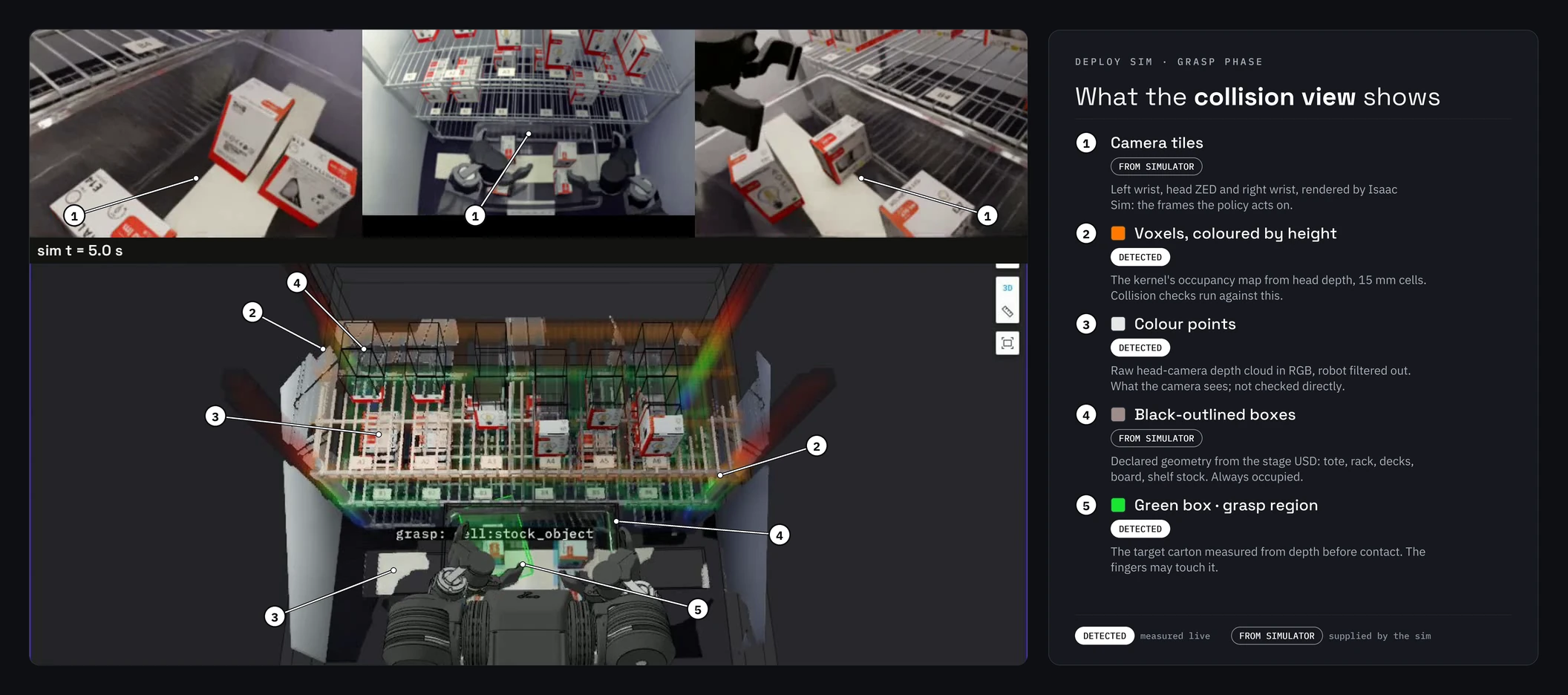
- Camera tiles (from simulator): left wrist, head ZED and right wrist, rendered by Isaac Sim. These are the frames the policy acts on.
- Voxels, coloured by height (detected): the kernel's occupancy map, built from head depth
by octomap at 15 mm. Collision checks run against this map. Cells inside a declared box
fixture are occupied in the kernel but left out of the drawing (
hide_static_voxels), so the fixture is drawn once, by its marker. - Colour points (detected): the raw head-camera depth cloud in RGB, with the robot filtered out. It shows what the camera sees; the kernel does not check it directly.
- Black-outlined boxes (from simulator): the declared static geometry
(
runtime.static_geometry_file): tote walls, rim and floor, rack, decks, staging board and shelf stock.tools/derive_scene_inputs.pyexports them from the stage's static colliders. They are always occupied, whether the camera has seen them or not. - Green box, grasp region (detected): the target carton, measured from head-depth points
inside the grasp declaration's
search_box. The fingers may touch it. Thesearch_boxitself is a scene input (derived from the sim's object poses) and is drawn too faint to see here.
Carry phase. The carton is attached to the left hand and rides with it.
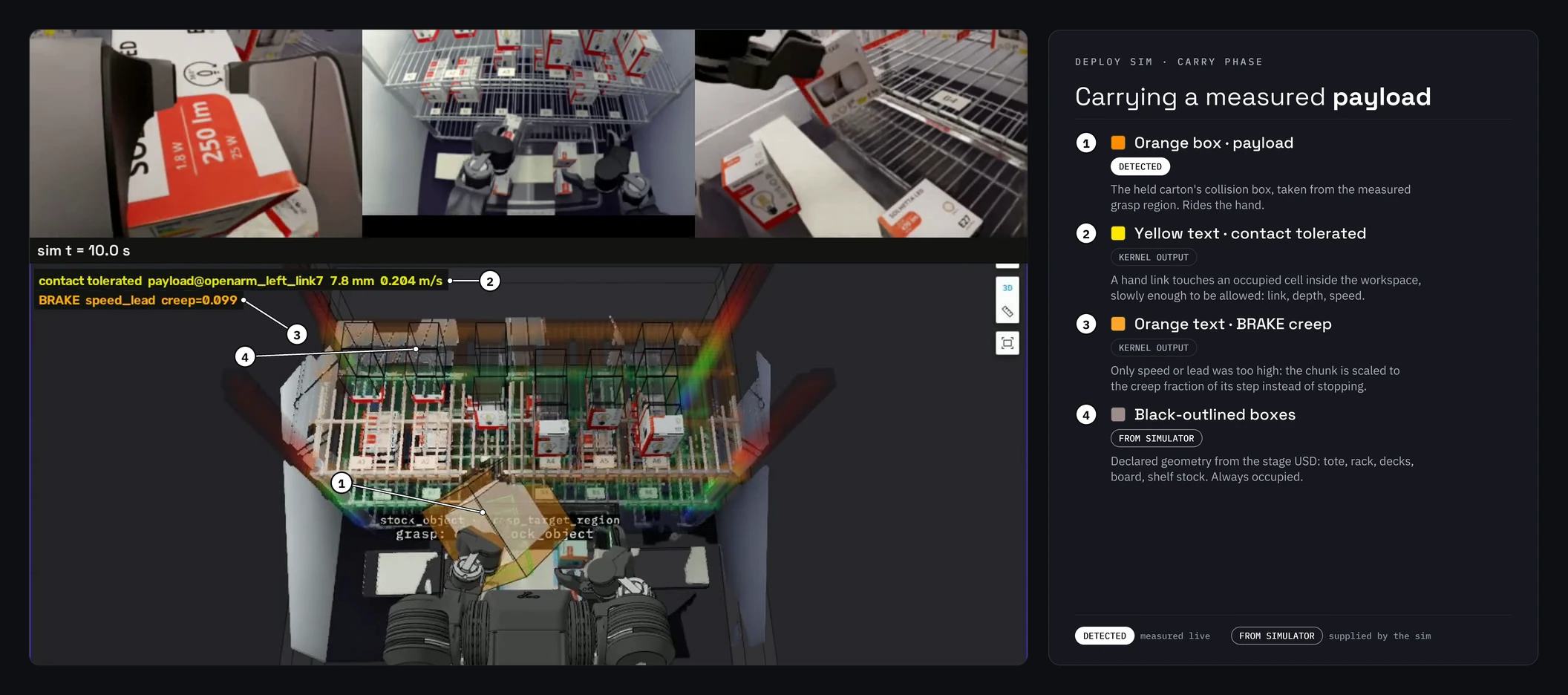
- Orange box, payload (detected): the held carton's collision box, taken from the measured
grasp region (
evidence_kind: grasp_target_region). From now on the kernel checks it against the world and the robot as part of the hand. - Contact tolerated (kernel log line
safety.workspace_contact): a hand link or its payload touches an occupied cell inside the declaredworkspace_box, slower thanworkspace_contact_max_speed_mpsand withinworkspace_contact_max_lead_m, so the kernel lets it through. The line reports the link, the depth into the cell and the hand speed. Arm links never get this tolerance. - BRAKE … creep (kernel log line
safety.workspace_brake): the chunk failed only because the hand was too fast or led its measured pose by too much. Instead of stopping, the kernel scales the chunk toward the measured pose;creep=0.099means about 10 % of the commanded step. Any other reason to refuse still stops the robot. - Black-outlined boxes (from simulator): the same declared static geometry, here the shelf stock above the target deck.
A payload from wrist segmentation. In another run, the right hand holds a carton whose box was measured by wrist-camera segmentation instead.
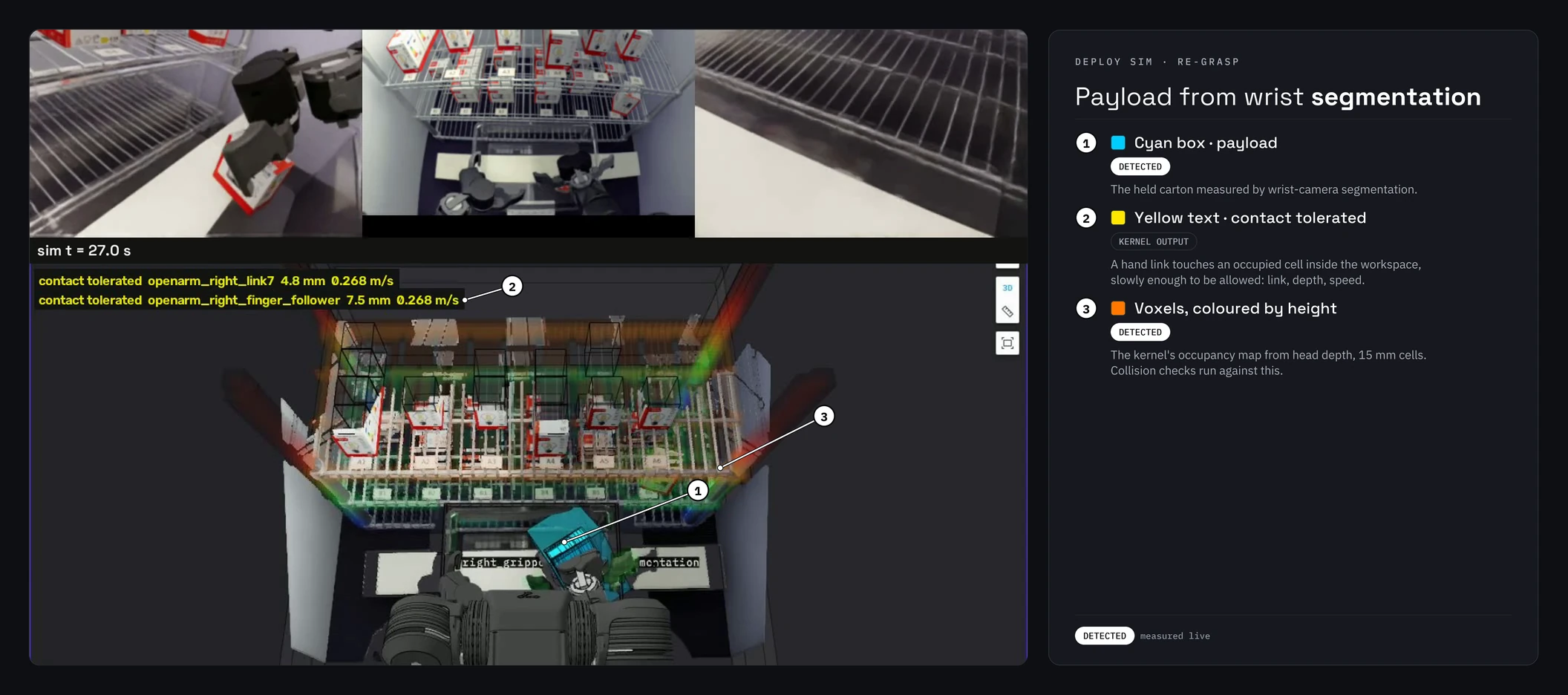
- Cyan box, payload (detected): a payload measured by wrist-camera segmentation
(
evidence_kind: vision_segmentation). - Contact tolerated: two hand links (
link7and the follower finger) in tolerated contact at the same time. - Voxels (detected), as in the grasp phase.
Colours not shown above: blue for an active place region, amber for the map-confirmed workspace
box, yellow for the jaw-span fallback payload and a red sphere where a kernel stop happened. All
of them are defined in
bucket2_markers.py;
the topics are listed in the
Foxglove bringup README.
Workspace contact is default off (runtime.workspace_contact_enabled) and sim-only until
Safety-WG review: openral deploy run on a real HAL refuses it.
3. Run on hardware
With the robot powered, connected, and within a clear workspace:
openral deploy run --config scenes/deploy/so100_pick_cube.yaml
- The robot is resolved from
--config;build_hal(mode="real")constructs the real HAL. If no hardware is attached,connect()fails loudly; a simulation-only robot raisesROSCapabilityMismatch(usedeploy sim). - Robot HAL defaults (
port/robot_ip/fci_ip/ adapter params) come fromrobots/<robot_id>/robot.yaml. Override at the CLI with repeatable--hal key=value:
openral deploy run --config scenes/deploy/so100_pick_cube.yaml --hal port=/dev/ttyUSB1
- The C++ safety kernel sits between the policy and the motors: Python
proposes, C++ disposes, and
ROSSafetyViolationis never silently caught. Keep your E-stop within reach.
SO-101 SmolVLA TensorRT fast path (OpenRAL Pro)
For the public SO-101 SmolVLA skill, the real deploy scene and rSkill are:
openral rskill install OpenRAL/rskill-smolvla-so101-eraser_place-bf16
openral deploy run \
  --config scenes/deploy/so101_bench.yaml
The OPENRAL_SMOLVLA_TRT=1 split ONNX/TensorRT fast path (and the GStreamer
NVMM zero-copy camera leg it pairs with) is an OpenRAL Pro plugin in the
private openral-pro-trt package, not this repo. With it installed, set
OPENRAL_SMOLVLA_TRT=1 before openral deploy run (the env var is read by the
pro-side hook, looked up by name via
openral_rskill.backend_registry.maybe_attach_pro_hooks); openral-pro's own
docs have the engine pre-build recipe.
Without openral-pro-trt, the policy runs in eager PyTorch (logged, not a
silent skip). For the SO-101 NVMM camera path, either install
the OpenRAL Pro plugin or disable NVMM for the relevant cameras in the
deploy scene.
Give the robot a task
The reasoner selects which rSkill to run, but without a goal it idles. Three ways to give it one:
At launch, with --initial-task:
openral deploy run --config scenes/deploy/so101_bench.yaml \
  --initial-task "pick the bowl and place it on the plate, then push the mug back"
A multi-step goal is decomposed into an ordered MissionState queue via the
reasoner's decompose_mission tool, and the queue only advances when the
active task passes the reward gate.
While it runs, from another terminal:
openral prompt "put the pen back in the cup"
This publishes one PromptStamped on /openral/prompt_in/cli; the
prompt-router fans it out to /openral/prompt for the reasoner. It needs a
sourced ROS 2 install.
A prompt arriving mid-mission is conversational context by default (an answer to a reasoner question, or a hint) and does not rebuild the task queue. To replace the current mission:
openral prompt --new-goal "stop that, clear the table instead"
On a cold-booted graph the router may not have discovered the publisher yet;
--discovery-wait-s 15 covers the stale-shared-memory case the 5 s default
does not.
From the dashboard, using the prompt box on the live pane, which posts to the same path as the CLI.
After an e-stop, clear it from the CLI with:
openral estop reset
Like the dashboard's reset button, it calls the safety kernel's
/openral/estop_reset first, then broadcasts /openral/estop_cleared only if the kernel
accepted, which un-latches the HAL and the rSkill runner. A bare
ros2 service call /openral/estop_reset ... clears the kernel alone, and the runner keeps
rejecting goals. Exit code 1 means the kernel refused the reset (often its cooldown), and
nothing was broadcast.
Optional reward monitor
deploy run can bring up the same reward/progress monitor as deploy sim:
openral deploy run \
  --config scenes/deploy/so101_bench.yaml \
  --enable-reward-monitor
The monitor is advisory only; it serves /openral/perception/query_task_progress
for the reasoner and never gates motors.
4. Open the dashboard
deploy run spawns the live dashboard by default (--dashboard/--no-dashboard,
port --dashboard-port, default 4318): a read-only pane over the OTel stream
(the most recent rskill.execute, rskill.chunk_inference, and safety.check
spans, rolling metric histograms, per-camera thumbnails, and an event log).
Operator discovery / write endpoints exist for tooling but are kept off the main
surface.
http://localhost:4318
The connection indicator (top right) turns green within a few hundred
milliseconds. Headless (e.g. CI): --no-dashboard; another port:
--dashboard-port 4400.
Or launch it standalone and point other workloads at it:
openral dashboard # binds 127.0.0.1:4318
then export OTEL_EXPORTER_OTLP_ENDPOINT=http://localhost:4318 and
OTEL_EXPORTER_OTLP_PROTOCOL=http/protobuf for the workload (see the
dashboard quickstart for the in-process demo
mode).
See also
scenes/README.md— DeployScene / SimScene / BenchmarkScene tiers.openral dashboardquickstart.- Reasoner (S2) reference — tool palette, bounded replanning, missions and memory.
- Your first sim rollout — the no-hardware path.
openral detect— auto-generaterobot.yamlby probing USB devices and sensors.